# Getting Started with Voila
# Standard Mode
## **Introduction to [](https://shipping-documentation.despatchcloud.app/uploads/images/gallery/2025-02/tT4voila.png)**
Welcome to **Voila**, your all-in-one solution for **courier label creation, tracking, and shipping automation**. This guide will walk you through the essential steps to set up your **API account, install couriers, and create smart shipping rules**.
**Voila** acts as a **translator** between your business and courier services, simplifying complex **API requests** and standardising responses across different courier platforms.
### **[ ](https://shipping-documentation.despatchcloud.app/uploads/images/gallery/2025-02/tT4voila.png)****Simplifies Shipping & Maximises Efficiency**
At **Voila**, we handle the complexity of courier integrations so you don’t have to. Our system translates your shipping requests into the various formats required by couriers, standardising their responses to ensure consistency and ease of use.
With **intelligent shipping automation**, you can seamlessly switch couriers based on key factors like **weight, postcode, collection times, or even location type** — **Voila** helps you with the following:
⚙️ **No IT Integration Hassles** – If a new courier offers better rates, you can onboard them instantly. Our pre-built APIs eliminate the need for costly development, allowing you to start shipping immediately.
⚡ **Optimise Costs & Delivery Speeds with Smart Rules,** take full control of your shipping strategy with **Smart Rules**, an intuitive system that dynamically selects the best courier based on key parameters like **cost, speed, weight, postcode, and pickup times**.
🔒 **Secure & Scalable API** – We safeguard your courier credentials by registering each account with a **friendly name ("auth")**, preventing sensitive data from being transmitted. Whether you manage a **single site or multiple locations**, our system ensures your requests are routed correctly and securely.
🛡️ **Security Is Our Top Priority** – every interaction is encrypted using advanced HTTPS protocols, protecting your data with the highest standards of online safety.
At Voila, we’re here to **streamline your shipping, save you time, and help you scale effortlessly**. Let’s simplify logistics together. 🚛
### **Step 1: Setting Up Your API Account**
Your **API account** is the foundation of your **Voila** setup. It enables you to:
- **Install** and **manage** courier integrations
- **Create** shipping labels and track parcels
- **Assign multiple API account**s to different locations for better organisation
#### **How to Set Up Your API Account**
1. **Log in to** **Voila** and navigate to the **API Account** section.
2. **Create a new API Group** or assign it to an existing group, especially for businesses with multiple locations.
3. **Create a new API account** and assign it a relevant name (e.g., "Main Warehouse").
4. **Generate an API token**—this will be used to authenticate your requests securely.
**🔶** For more details, refer to our[ **API Account Setup Guide**](https://shipping-documentation.despatchcloud.app/books/api-accounts/page/api-accounts "API Accounts").
### **Step 2: Registering Your First Courier**
Each API account can independently install couriers, ensuring flexibility in managing multiple carriers.
#### **How to Register a Courier**
1. **Go to the Couriers section** in your **Voila** dashboard.
2. **Select a courier** from the available list (e.g., DPD, Yodel, Evri).
3. **Enter the required authentication details** (each courier has different requirements).
4. **Assign a friendly name** to the courier (e.g., "Manchester DPD Account").
5. **Click "Save"** to complete the setup.
Once added, your courier is ready to process shipments!
**🔶** Need help? Visit our [**Courier Setup Guide**](https://shipping-documentation.despatchcloud.app/books/courier-directory-0op/chapter/courier-setups "Courier Setups") for step-by-step instructions.
### **Step 3: Creating Smart Shipping Rules**
Smart Shipping allows you to automate courier selection based on predefined conditions such as weight, location, and price.
⚡ **Optimise Costs & Delivery Speeds with Smart Rules -** Take full control of your shipping strategy with **Smart Rules**, an intuitive system that dynamically selects the best courier based on key parameters like **cost, speed, weight, postcode, and pickup times**.
📦 **Cost Efficiency** – Automatically choose the most affordable courier without sacrificing service quality. Set price thresholds to ensure you’re always getting the best deal.
🚚 **Faster Deliveries** – Route shipments based on pickup availability and transit times, ensuring your parcels reach customers as quickly as possible.
🔄 **Seamless Flexibility** – Adapt on the fly! If a courier service is unavailable or offers better rates, switch effortlessly without disrupting your workflow.
With Smart Rules, every shipment is **optimised for cost and speed**, saving you time, money, and hassle. Let automation do the heavy lifting while you focus on growing your business! 💡
#### **How to Create a Smart Shipping Rule**
1. **Go to "Smart Shipping"** in **Voila**.
2. **Create a new rule group** (e.g., "Express" or "Standard").
3. **Add a new rule** within the group:
- Set **a priority** (lower numbers run first).
- Define **supported countries** (e.g., UK).
- Exclude specific **postcodes** (e.g., Northern Ireland).
- Set a **maximum parcel weight and dimensions**.
- Choose **a courier and backup failover service**.
- Enable **return labels** if required.
4. **Save your rule** and start automating shipments!
**🔶** Explore our [**Smart Shipping Guide**](https://shipping-documentation.despatchcloud.app/books/smart-shipping/page/smart-shipping "Smart Shipping") for advanced rule configurations.
### **Step 4: Managing Shipments & Actions**
Once couriers are set up, you can view and manage shipments effortlessly.
#### **How to View Shipments**
1. **Click "View Shipments"** to see all shipment requests.
2. **Filter shipments** by date, courier, or status.
3. **Check shipment details** including tracking information and costs.
#### **Available Actions**
- **Cancel Shipment** – Void a shipment if it's no longer needed.
- **Download Label** – Retrieve shipping labels for printing.
- **Parcel Info** – View package dimensions, weight, and service details.
- **Print Packing Slip** – Generate and print packing lists for orders.
- **Print Commercial Invoice** – Create invoices for international shipments.
**🔶** For more details, refer to our [Shipment Documentation.](https://shipping-documentation.despatchcloud.app/books/shipments/page/shipments "Shipments")
## **Next Steps & Support**
****🔶** Need help?** Explore more of our documentation, video walkthroughs or contact [**support**](https://support.despatchcloud.com/?request=eyJlbnRlcnByaXNlIjoiIiwicHJvZHVjdCI6IlNoaXBwaW5nIiwiYWNjb3VudF9uYW1lIjoiTWljaGVsbGUgUmF0Y2xpZmZlIiwiYWNjb3VudF91cmwiOiIiLCJhY2NvdW50X3BsYW4iOiIxMDAgQ3JlZGl0IEZyZWUgVHJpYWwiLCJzdXBwb3J0X3BpbiI6IiIsImh1Yl9jdXN0b21lciI6IiIsInVzZXJfbGV2ZWwiOiIiLCJjb21wYW55X25hbWUiOiJEZW1vRG9jcyIsIm5hbWUiOiJNaWNoZWxsZSBSYXRjbGlmZmUiLCJjb250YWN0X2VtYWlsIjoibWljaGVsbGUucmF0Y2xpZmZlQGRlc3BhdGNoY2xvdWQuY29tIiwiY29udGFjdF9waG9uZSI6IiJ9).
**🔶 Looking for more features?** Check out our **[Smart Shipping Guide](https://shipping-documentation.despatchcloud.app/books/smart-shipping/page/smart-shipping)**.
With **[](https://shipping-documentation.despatchcloud.app/uploads/images/gallery/2025-02/tT4voila.png)**, you will be set up for **seamless, efficient shipping**. 
# Advanced Mode
## **Introduction to** **[](https://shipping-documentation.despatchcloud.app/uploads/images/gallery/2025-02/tT4voila.png)**
Welcome to **Voila**, your all-in-one solution for **courier label creation, tracking, and shipping automation**. This guide will walk you through the essential steps to set up your **API account, install couriers, and create smart shipping rules**.
**Voila** acts as a **translator** between your business and courier services, simplifying complex **API requests** and standardising responses across different courier platforms.
### **[](https://shipping-documentation.despatchcloud.app/uploads/images/gallery/2025-02/tT4voila.png)** **Simplifies Shipping & Maximises Efficiency**
At **Voila**, we handle the complexity of courier integrations so you don’t have to. Our system translates your shipping requests into the various formats required by couriers, standardising their responses to ensure consistency and ease of use.
With **intelligent shipping automation**, you can seamlessly switch couriers based on key factors like **weight, postcode, collection times, or even location type** — **Voila** helps you with the following:
⚙️ **No IT Integration Hassles** – If a new courier offers better rates, you can onboard them instantly. Our pre-built APIs eliminate the need for costly development, allowing you to start shipping immediately.
⚡ **Optimise Costs & Delivery Speeds with Smart Rules,** take full control of your shipping strategy with **Smart Rules**, an intuitive system that dynamically selects the best courier based on key parameters like **cost, speed, weight, postcode, and pickup times**.
🔒 **Secure & Scalable API** – We safeguard your courier credentials by registering each account with a **friendly name ("auth")**, preventing sensitive data from being transmitted. Whether you manage a **single site or multiple locations**, our system ensures your requests are routed correctly and securely.
🛡️ **Security Is Our Top Priority** – every interaction is encrypted using advanced HTTPS protocols, protecting your data with the highest standards of online safety.
At **Voila**, we’re here to **streamline your shipping, save you time, and help you scale effortlessly**. Let’s simplify logistics together. 🚛
### **Quick Start Guide: Setting Up Postman & **** API****
**
#### **🛠 Installing Postman**
1. **Download Postman**: Visit the [Postman Downloads](https://www.postman.com/downloads/) page and choose the version for Windows, macOS, or Linux.
2. **Install Postman**: Locate the downloaded file and follow the on-screen installation instructions.
3. **Create an Account**: Sign up at [Postman Account Signup](https://identity.getpostman.com/signup) to access all features.
#### **⚙️ Setting Up Postman for ****[](https://shipping-documentation.despatchcloud.app/uploads/images/gallery/2025-02/tT4voila.png)**** API**
1. **Import the Documentation**: Visit the [Voila API documentation ](https://api.courierapi.co.uk/)and save it to your Postman account.
2. **Click ‘Run in Postman’** (top-right corner of the screen).
3. **Select Your Platform**: Choose "Postman for Windows/Linux/macOS."
4. **Pick a Workspace**: Select where to import the collection and confirm.
5. **Access API Calls**: Once imported, find the **Voila** API calls and examples in Postman.
**Click to Play or Pause the Video**
#### **🔑 Creating an API Account (GUI Method)**
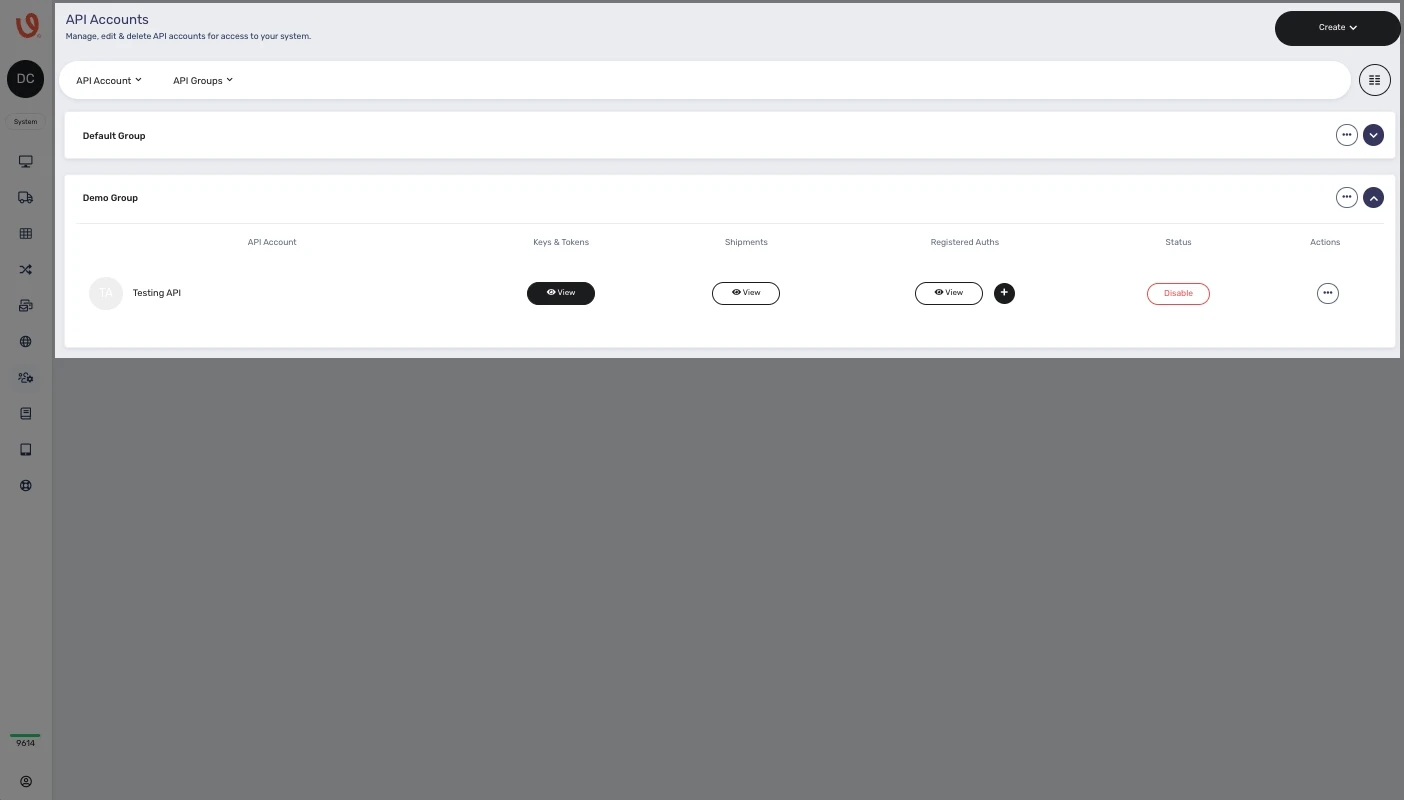
Setting up an API account in **Voila** is the key to managing shipments efficiently, it enables access to shipping tools like label creation and tracking. Everything starts here, streamlining your logistics from the get-go.
1. **Navigate to API Accounts** in **Voila**.
2. **Create Groups (Optional)** for managing multiple locations.
3. **Install Couriers Per Account** to keep settings unique.
##### **🗂 API Accounts Overview:**
- **API Account**: Displays account names.
- **Keys & Tokens**: View/regenerate API credentials.
- **Shipments**: Track all shipments sent via this account.
- **Registered Auths**: Manage courier integrations.
- **Status**: Activate/deactivate API accounts.
- **Actions**: Move accounts between groups or delete them.
📌 **For detailed setup, check the** [**API Accounts Documentation**](https://shipping-documentation.despatchcloud.app/books/api-accounts/page/api-accounts "API Accounts Voila")**.**
Before configuring your collection variables in Postman, you must refer to the [API Accounts documentation page](https://shipping-documentation.despatchcloud.app/books/api-accounts/page/api-accounts) for setup instructions on creating an API account. Once you have set up an API account, you can retrieve the necessary "api-user" and "api-token" variables from there.
[](https://shipping-documentation.despatchcloud.app/uploads/images/gallery/2025-02/creating-an-api-account-gui-method.webp)
#### **🔧 Configuring Postman Collection Variables**
After obtaining your API username and token, set them up in Postman. Storing them as collection variables simplifies requests and eliminates the need for repeated entries. Since these keys are already included in the collection, update them as needed.
1. **Go to ‘Variables’** (centre of the screen when viewing the collection).
2. **Enter API Credentials**:
- **Variable:** `api_url` → [`https://production.courierapi.co.uk`](https://production.courierapi.co.uk)
- **Variable:** `api-user` → *(Your API username)*
- **Variable:** `api-token` → *(Your API token)*
3. **Retrieve API Details**:
- Find `api-user` under "API Accounts" → "API Account" column.
- Find `api-token` under "Keys & Tokens" column.
4. **Click ‘Save’** (top-right corner).
[](https://documentation.despatchcloud.com/uploads/images/webp/Shipping/Shipping_SG_Advanced_SettingGlobalVars.webp?t=1722349428)
#### **📡 Creating an API Account (API Method)**
Setting up an API account through the API interface is a simple process that enhances workflow efficiency, especially when collaborating with team members across different locations.
1. **Go to ‘Account & Management’** folder in Postman.
2. **Select ‘Create a New API User’.**
3. **Customise the Request**: Enter the `name` field (other fields are optional).
4. **Click ‘Send’** (top-right corner).
5. **Retrieve API Keys** from the response.
6. **Confirm API Account in Voila** under "API Accounts."
**Click to Play or Pause the Video**
#### **Getting a List of Couriers**
To view the available couriers along with their names and details, you can utilise this endpoint to access all pertinent information on how couriers are identified within the API and how to reference them later.
##### **Follow these steps:**
1. Expand the "Account & Management" folder, then select "List Couriers" from the left-hand menu.
2. Click "Send" to submit the request.
3. The request-response contains a list of available couriers. Each courier is identified by the string contained within the "key" attribute.
#### **🚚 Retrieving a List of Couriers**
Utilise this endpoint to obtain key details on courier identification within the API and how to reference them later.
1. **Expand ‘Account & Management’.**
2. **Select ‘List Couriers’.**
3. **Click ‘Send’.**
4. **View Response**: The list of couriers is displayed with unique keys.
[](https://documentation.despatchcloud.com/uploads/images/webp/Shipping/Shipping_SG_Advanced_ListCouriers.webp?t=1722349428)
#### 📜 **Displaying Required Courier Parameters**
Before proceeding to install couriers, it's essential to understand the parameters and information they require for installation. You can easily accomplish this by following these steps:
1. **Expand ‘Account & Management’.**
2. **Select ‘Get Auth Rules’.**
3. **Modify URL** with the courier key:
`{{api_url}}/API/couriers/v1/ENTER-YOUR-COURIER-KEY-HERE/register-auth-rules`
4. **Click ‘Send’.**
5. **View Required & Optional Parameters -** the request-response contains the required and optional keys and their expected values, whether strings, integers or dictionaries.
[](https://documentation.despatchcloud.com/uploads/images/webp/Shipping/Shipping_SG_Advanced_GetAuthRules.webp?t=1722349428)
#### **Installing a Courier Through the API**
Now that you know the fundamentals of API user setup and couriers, let's guide you through creating your initial courier connection. Each API account can independently install couriers, ensuring that courier connections remain distinct to each account. This meticulous level of control empowers you to tailor your shipping configuration to the specific requirements of your business segments.
##### **To install a courier via the API, follow these steps:**
1. Expand the "Account & Management" folder, then navigate to "Register Auth" in the left-hand menu.
2. Adjust the request URL, such as replacing the courier name with your desired choice. In this demonstration, we'll install DHL.
3. Customise the request data according to the courier's specific requirements. You can refer to the previous section if you need guidance on this.
4. Click the "Send" button at the screen's top left corner.
5. Review the request response to determine whether the installation was successful or unsuccessful.
6. To view the newly installed courier, proceed to **Voila** and select "API Accounts" from the left-hand menu.
7. In the API account where you installed the courier, click the "View Registered Auths" button.
8. You can confirm that DHL is listed in the installed courier's section, indicating a successful installation process.
#### 📦 **Installing a Courier via API**
Now that you know the fundamentals of API user setup and couriers, let's guide you through creating your initial courier connection. Each API account can independently install couriers, ensuring that courier connections remain distinct to each account. This meticulous level of control empowers you to tailor your shipping configuration to the specific requirements of your business segments.
1. **Expand ‘Account & Management’.**
2. **Select ‘Register Auth’.**
3. **Modify Request Data** with the courier’s specific details.
4. **Click ‘Send’.**
5. **Verify Response** for success.
6. **Check Installed Couriers** in **Voila** under "API Accounts."
[](https://documentation.despatchcloud.com/uploads/images/webp/Shipping/Shipping_SG_Advanced_RegisterAuth.webp?t=1722349428)
#### **🤖 Creating Smart Rules**
Smart shipping enables automated carrier selection based on predefined rules.
1. **Access the Smart Shipping Interface**.
2. **Create Rule Groups & Smart Rules** based on shipping parameters.
3. **Optimise Costs & Delivery Speeds** through automated courier selection.
📌 **For a step-by-step guide, check the** **Smart Shipping Documentation****.**
---
You’re now set up with Postman and **** API!
🚀 Happy shipping!