API Request Records
Access records of API requests.
API Request Logs
Overview
The API Request Logs page provides a comprehensive overview of incoming requests from individual API users to the system. This page is a central hub for reviewing the various API requests directed at your system.
This documentation will guide you through effectively utilising this page and its accompanying features. This guide will cover essential tasks such as conducting searches within the requests, interpreting log files, and comprehending request particulars like response codes.
Defining View
Upon successfully logging into your Voila dashboard, navigate to the "API Request Logs" page by selecting it from the menu on the left-hand side of the interface.
To begin, you have the flexibility to customise the content displayed on the API Request Logs page. On the top right corner, you'll find a button that, when clicked, enables you to select the specific options you wish to have displayed. Utilise this feature to indicate your preferences for the content you want to view. Additionally, you can determine the visibility of specific columns through the "Column Selector" and designate your chosen filters in the "Filter Selector" section.
Click to Play or Pause the Video
Search Bar
To conduct searches within your API requests, take advantage of our distinct search parameters, namely "REQUEST_ID" or "ID," both accessible to the left of the "Search" button.
- REQUEST_ID: This identifier is determined by the user within their request. Typically, it corresponds to the UNIX timestamp denoting the request time. You can adopt this approach in scenarios where the "request_id" aligns with the request time. Moreover, the "request_id" content in your request JSON can be configured as per your requirements.
- ID: The Voila API system assigns a unique global ID to each specific request. This numeric identifier is sequential and perpetually increasing. For instance, if a request bears an ID of "51," the subsequent request will be assigned an ID of "52."
Click to Play or Pause the Video
Filtering by Date
You also have the option to specify a particular date range for viewing API requests. As demonstrated in the image below, selecting a date range within which our requests are present becomes necessary when the default date range does not yield any results.
To modify the date range, click on the calendar icon in the screen's top-right corner.
You will find two distinct options: one permits manual selection of a date range directly from the calendar, while the other provides a convenient "Fast Date Picker." The latter offers a variety of pre-defined date ranges frequently used, such as "This Week," "Last Week," "This Month," and more. It empowers you to swiftly narrow down your API request logs according to your needs.
Click to Play or Pause the Video
Filters
Filters are powerful tools to fine-tune your search amidst the array of requests.
- Request URL: The Request URL corresponds to the Voila API endpoint to which your request is directed. You can retrieve API Requests containing the specified keywords by inputting either the complete URL or a portion of it. It's unnecessary to input the entire request URL to apply this filter effectively. For instance, typing "RoyalMail" in the search field will display a comprehensive list of requests linked to Royal Mail. Similarly, if you seek "create-label" requests, a simple "create" filter will suffice.
- API Account: If you function as a reseller or agency managing Voila API on behalf of diverse clients, you may need multiple API user accounts (these accounts can be established in the "API Accounts" section). In this context, the API Account filter allows you to select the specific API account(s) for which you wish to evaluate requests.
- Response Code: This pertains to the HTTP response code assigned to requests. By specifying the code within this filter, you can zero in on API requests of interest. For instance, entering and selecting the "400" code, as depicted in the image below, will exclusively present a list of requests bearing this particular response code.
Click to Play or Pause the Video
Request Details
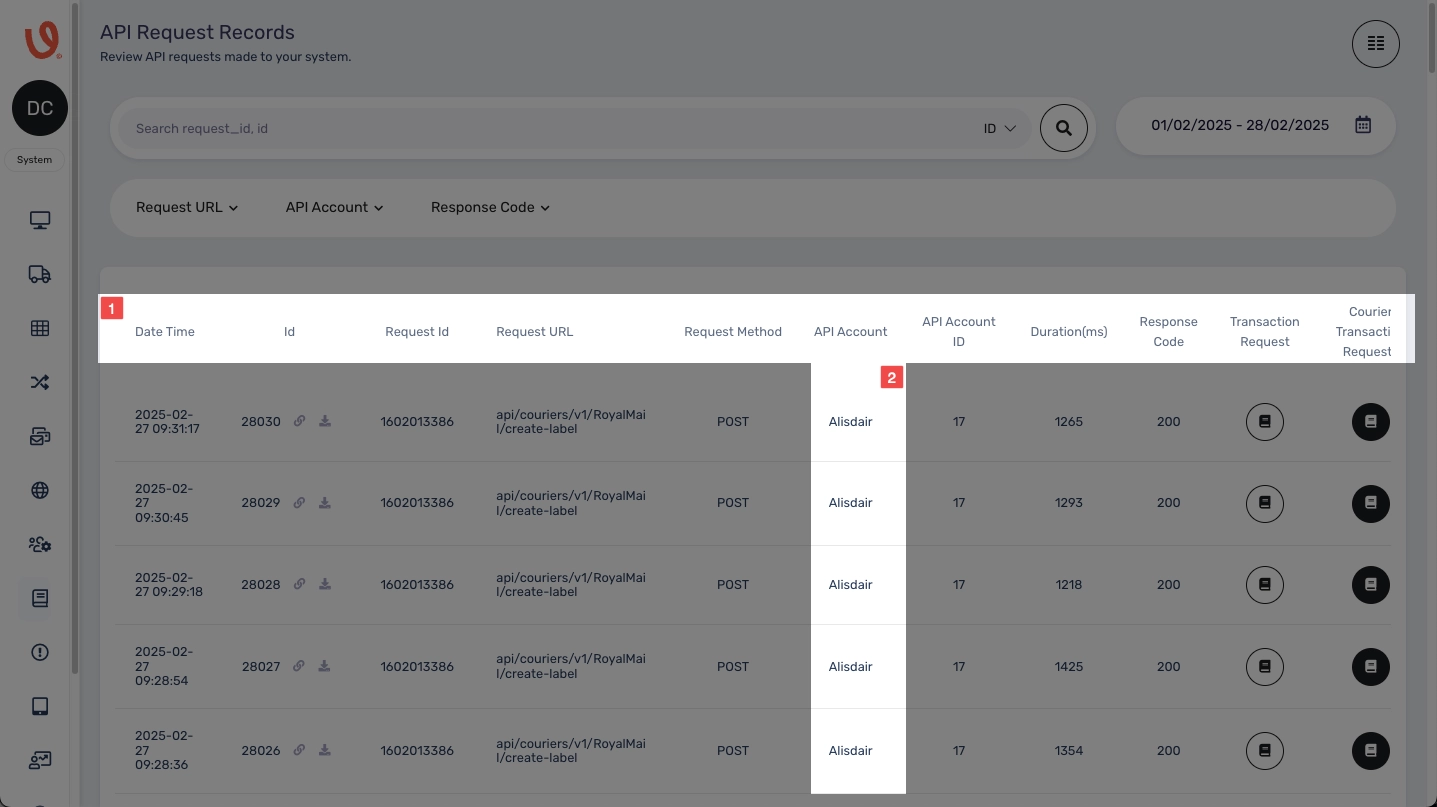
Once you've selected your desired date and applied filters, a comprehensive list of requests and their corresponding details will be presented. As illustrated in the image below, this section encompasses a range of more information and features, each of which we will examine individually:
- Date Time: This field displays the precise date and time when the requests were transmitted.
- Request Method: This column showcases the HTTP request methods employed for each request. Typically, these methods include GET and POST requests.
- Request Authenticated: The numerical value here corresponds to the API user ID. As shown in the subsequent image, this number is distinct for each API account.
- Duration (ms): This field denotes the duration between the moment the server received the request and the subsequent transmission of the response, with the time interval measured in milliseconds.
Furthermore, additional fields exist like ID, Request ID, Request URL, and API Account. These have been previously discussed within this documentation's "Search" and "Filters" sections.
Response Code
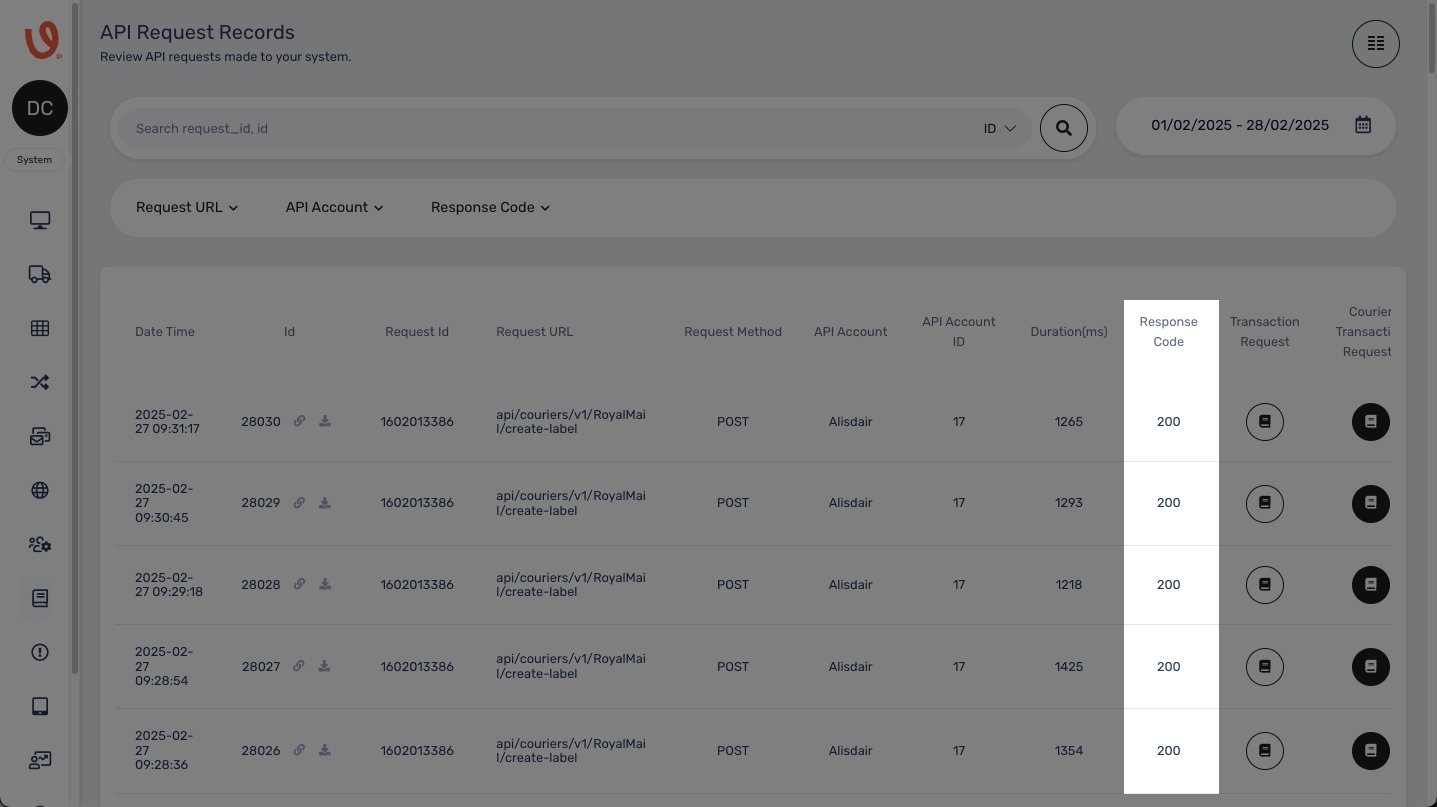
The Response Code refers to the HTTP response code. While sending requests, you may encounter several common response codes, each with its distinct implications:
- 200: This code signifies that the request has been successfully processed.
- 400: This code indicates a client error, which means that the server is unable or unwilling to proceed with the request due to perceived issues with the client's input.
- 401: This code reflects an incomplete client request arising from a lack of valid authentication credentials for the specified resource. Among the most frequently encountered errors on the Voila API, this isn't a system flaw but rather an indication that the submitted information does not match the required criteria.
- 500: This code indicates an unexpected server condition that hinders the request's fulfilment. It's often employed when no other error code precisely fits the situation.
Logs
When you click on the Logs icon associated with any given request, you'll notice two distinct sections: "Request Data" and "Response Data." These sections provide insight into both the data sent and received. In the following areas, we'll delve into the details of the codes in both the request and response data.
- Request Data: This section encompasses the body of the request sent to the Voila API. Below is an example of Request Data:
-
- "testing": This employs a registered auth marked with "yes" in the UI, often utilised for testing purposes. If test credentials are used, or the courier's testing URL is the target, this parameter is set to false by default.
- "auth_company": It corresponds to the Company field registered in the UI. It acts as an identifier for the courier on your account, which is essential when managing multiple accounts with the same courier.
- "request_id": This value is randomly generated within our playground, but you can set it as desired. This ID assists in locating requests within your CourierAPI account dashboard.
- "format_address_default": Set to "true," this feature aids in resolving common address formatting errors within the API. However, the exact validation methods may vary among different couriers.
- "label_size": You can select from sizes such as 6x4 or 8x4 or even consult S17 and S19 label sizes. Additional information regarding label creation, various label sizes, and more can be found in the Documentation.
- "generate_invoice"/"generate_packing_slip": These options allow for generating a commercial invoice or a packing slip. If a 6x4 packing slip is required, you can also opt for that.
- "dc_service_id": This pertains to the ID of the courier service preset. These presets consist of specially configured codes granting access to specific services each courier offers. For further details, you can refer to the Courier Directory document.
- "collection_date": This represents the expected collection date of the parcel. Usually, it reflects the current date along with a timestamp.
- "reference": Customers can set a reference when submitting a shipment request. This reference can be displayed on the label or bill. For instance, you might use the shipment's Order ID.
- "delivery_instructions": If the courier supports delivery instructions and you possess specific instructions from your client, you can provide them here. This customer-driven field allows you to leave directions for the delivery driver, such as "Leave on the porch" or "Deliver to my neighbour if I'm not home."
- "country_iso": The recipient address and Country ISO code. For clarification, refer to the "ISO 3166-1 alpha-2" list.
- "company_id": Company number for Companies House (consignor), necessary for international shipments.
- "tax_id": VAT number with issuing country, required for international shipments.
- "eori_id": Economic Operators Registration and Identification number (EORI), typically VAT number with trailing 000s, necessary for international shipments.
- "description": The item description, as in your inventory system or website. For example, "Blue Monster Doll."
- "origin_country": It is the ISO code of the country where the item was initially imported; consult the "ISO 3166-1 alpha-2" list.
- "sku": Item identifier in your inventory system, like "TOY40."
- "hs_code": International standard codes for classifying shipped items.
-
- Response Data: This section encapsulates the body of the response received from the Voila API. Here's an example of Response Data:
-
- "tracking_codes": The courier supplies this code for tracking purposes.
- "tracking_urls": If used alongside the Channel API, this information can be pushed back to compatible platforms like eBay, Amazon, Shopify, and more.
- "uri": An array of URLs the courier provides for customers to track their shipments. Not all couriers support this feature. The URI has a 1-hour expiration time.
- "key": This is used to regenerate the PDF in case the URI expires.
- "tracking_request_id" / "tracking_request_hash": These parameters are helpful when making the get-tracking request, which retrieves tracking updates from the Tracking API if the Tracking API supports the courier.
-
By thoroughly examining these sections, you can understand the data interactions between your system and the Voila API. If there's anything else you need assistance with, please don't hesitate to let us know.
Click to Play or Pause the Video
Request Logs
Request Logs offer a comprehensive view of a request's journey from inception to culmination. They include tracking how numerous requests are initiated, transmitted, and processed until the final response is obtained and presented. A window will appear when selecting a specific request, showcasing key details like the Date, Time, ID, Method, URL, Duration (ms), and Status (Response Code) of the API request.
Clicking the "View logs" button unveils the logs for requests flowing between the Voila API and the courier's servers, displayed as both Request Data and Response Data.
- Request Data: This section encompasses the requests despatched from the Voila API to the courier's servers.
- Response Data: In this section, you gain visibility into the responses received by the Voila API from the courier's servers.
Click to Play or Pause the Video